

🐳 Fixing DNS Issues in Windows-Based Docker Containers for Business Central Testing
When working with Docker containers to test applications in a Microsoft Dynamics 365 Business Central instance, one of the more frustrating issues you can encounter is the inability of your container to reach the internet. This can break installation scripts, prevent downloads, or block access to public APIs your apps may rely on.
In this post, we’ll walk through how to identify and fix DNS-related network issues in Windows-based Docker containers — specifically when using Docker Engine on Windows, and without Docker Compose.
🚧 The Problem: No Internet Access Inside the Container
After starting a Business Central container and entering it via command line, you may encounter the following error when trying to ping an external domain:
Ping request could not find host google.com. Please check the name and try again.This usually points to a missing or incorrect DNS configuration. The container doesn’t know where to send name resolution requests, so any attempt to access the web via domain names will fail.
📸 Step 1: Accessing the Container via CMD
To troubleshoot from inside the container, first open a command line interface using Docker:
docker exec -it bcserver cmd🔧 Step 2: Fixing DNS Inside the Container
Once inside, switch to PowerShell
PowerShelland inspect the current DNS configuration using:
Get-DnsClientServerAddressYou’ll typically see that no DNS server is defined. Set one manually (like Google DNS: 8.8.8.8) using the Set-DnsClientServerAddress command. Note: Replace the interface index with the actual number shown from the previous command (in this case, 40).
Set-DnsClientServerAddress -InterfaceIndex 40 -ServerAddresses ("8.8.8.8")You should now be able to resolve and ping domains:
ping google.com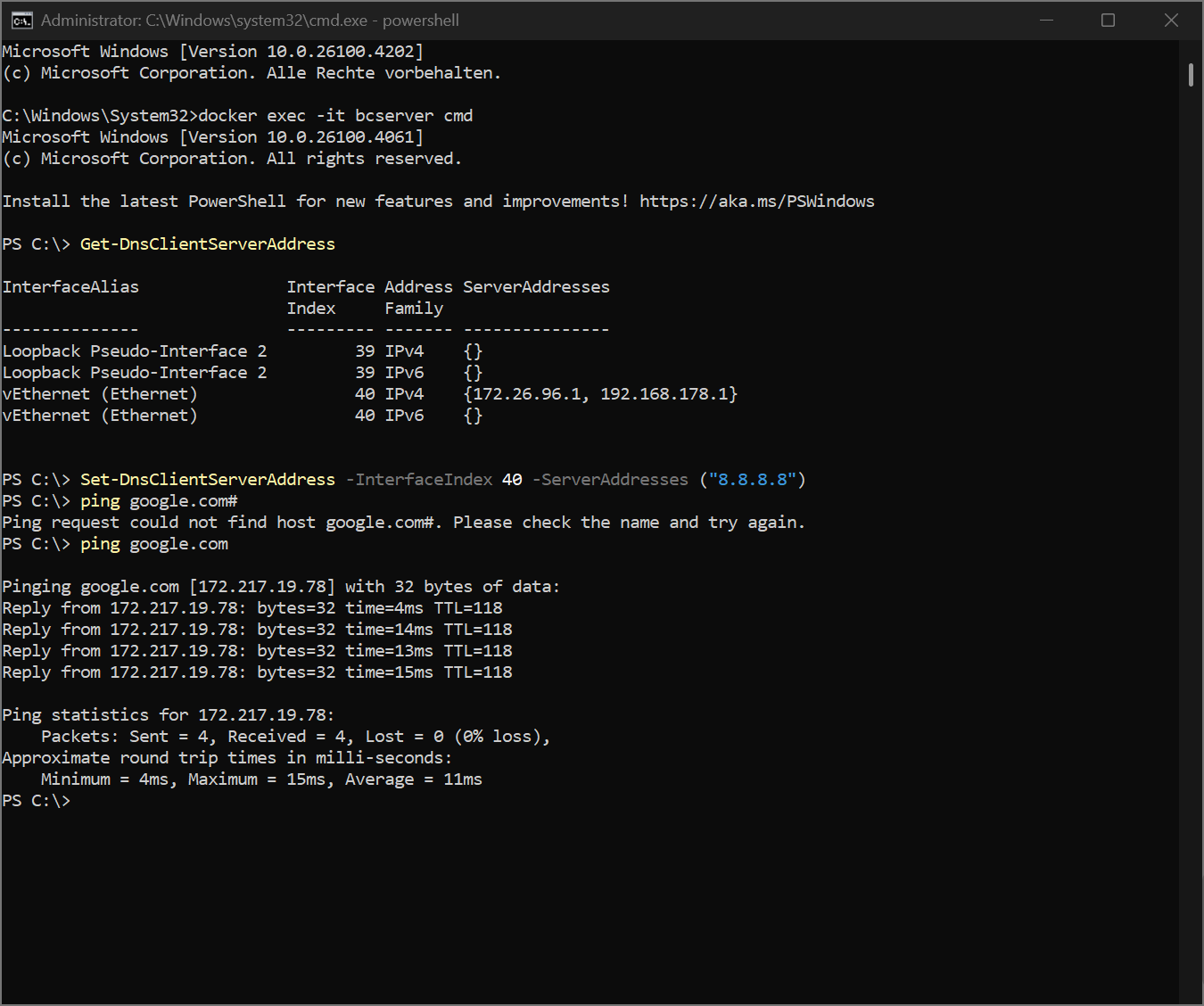
⚙️ Optional: Make DNS Settings Persistent
If you're spinning up containers regularly, repeating this step each time can be inefficient. While manual setup works, you can also predefine DNS servers globally via Docker's configuration.
Edit or create the following file on your Windows host:
C:\ProgramData\Docker\config\daemon.jsonAdd the following content:
{
	"dns": ["8.8.8.8", "1.1.1.1"]
}
Then restart the Docker service:
Restart-Service dockerAll future containers — including those for Business Central — will now automatically use these DNS settings.
✅ Summary
Fixing DNS issues in Windows-based Docker containers is a quick process once you know where to look. Whether you're setting up containers manually or want to streamline your development workflow, setting the correct DNS server ensures your Business Central test containers can communicate with the outside world without interruptions.
