

or should I really run through all my files and convert the variables?
What's the case?
You convert your old C/AL Code and make them AL ready, right?
This is how you should do it:
- Export your C/AL-Objects as txt-File
- Split your Objects separately (I will provide a powershell script soon)
- Run this e.g. in cmd:
cd "C:\Program Files (x86)\Microsoft Dynamics 365 Business Central\140\RoleTailored Client"
txt2al.exe --source="C:\Install\Source" --target="C:\Install\Target"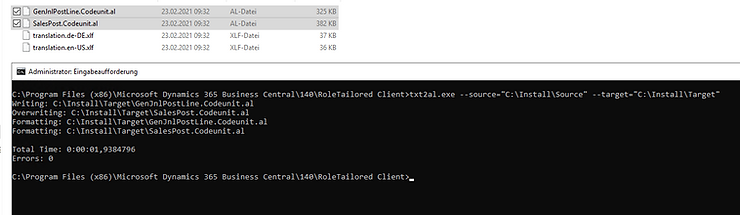
Get your converted files and import them into your repo in VC Code:
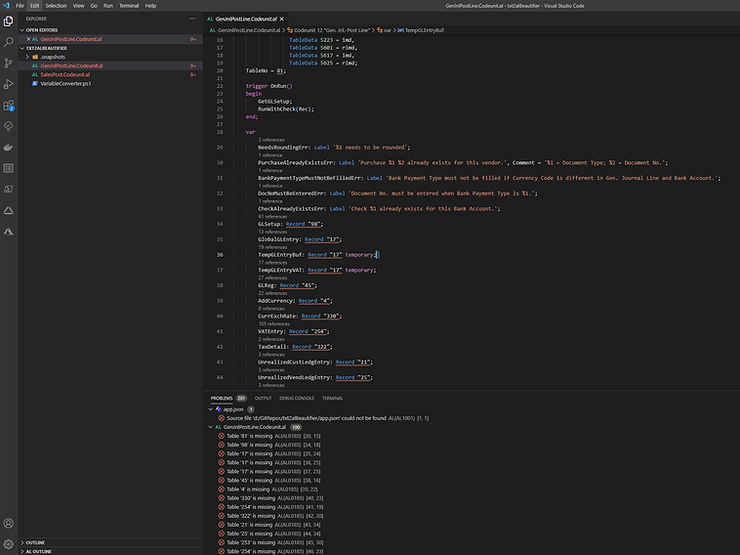
And as you can see, your variables are not recognized.
You could use a Regular Expression:
"(\d*)"and replace it with:
$1
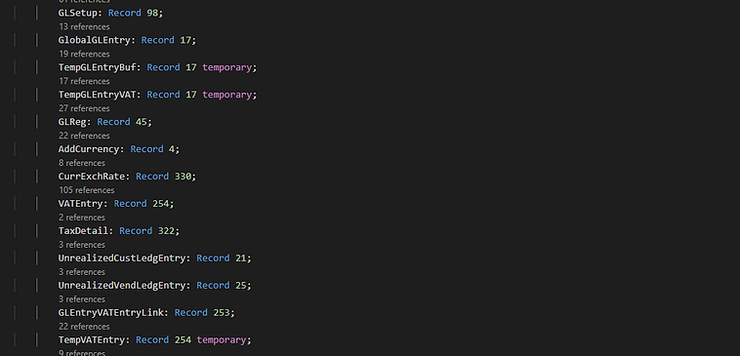
Or you could even use this PowerShell script or how I call it: "txt2AL Beautifier".
This PowerShell script works with a dictionary, which you can easily extend:
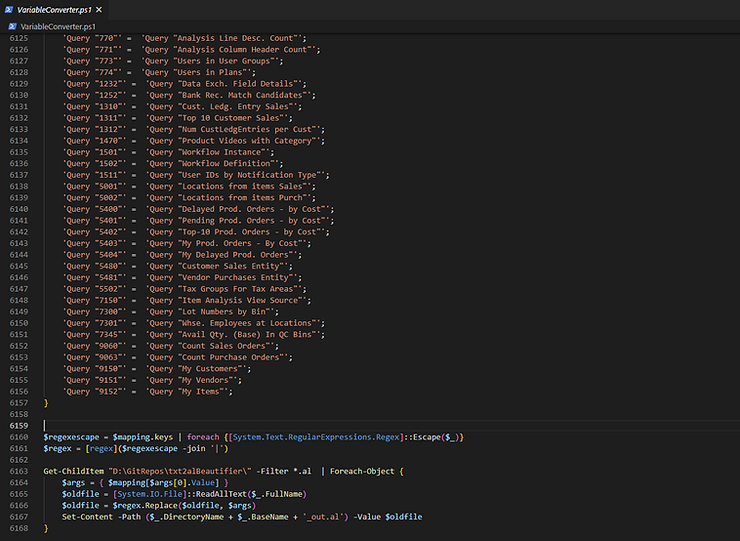
And it will iterate through all given *.al files to convert these variables correctly:
$mapping = @{
  'Record "3"'     = 'Record "Payment Terms"'
  'Record "4"'     = 'Record "Currency"'
  'Record "5"'     = 'Record "Finance Charge Terms"'
  'Record "6"'     = 'Record "Customer Price Group"'
  'Record "7"'     = 'Record "Standard Text"'
  'Record "8"'     = 'Record "Language"'
  'Query "7300"'   = 'Query "Lot Numbers by Bin"'
  'Query "7301"'   = 'Query "Whse. Employees at Locations"'
  'Query "7345"'   = 'Query "Avail Qty. (Base) In QC Bins"'
  'Query "9060"'   = 'Query "Count Sales Orders"'
  'Query "9063"'   = 'Query "Count Purchase Orders"'
  'Query "9150"'   = 'Query "My Customers"'
  'Query "9151"'   = 'Query "My Vendors"'
  'Query "9152"'   = 'Query "My Items"'
}

$regexescape = $mapping.Keys | ForEach-Object { [Regex]::Escape($_) }
$regex = [Regex]($regexescape -join '|')

Get-ChildItem $PSScriptRoot -Filter *.al | ForEach-Object {
  $values = { $mapping[$args[0].Value] }
  $incomingfile = Get-Content $_.FullName -Raw
  $incomingfile = $regex.Replace($incomingfile, $values)
  Set-Content -Path ($_.DirectoryName + "\" + $_.BaseName + "_out.al") -Value $incomingfile
}
Get the full file here:
UsefulScripts/Powershell at main · byndit/UsefulScrpts (github.com)
Have Fun :)

